Updates

Follow new updates and improvements to BeZoned.

April 30th, 2026

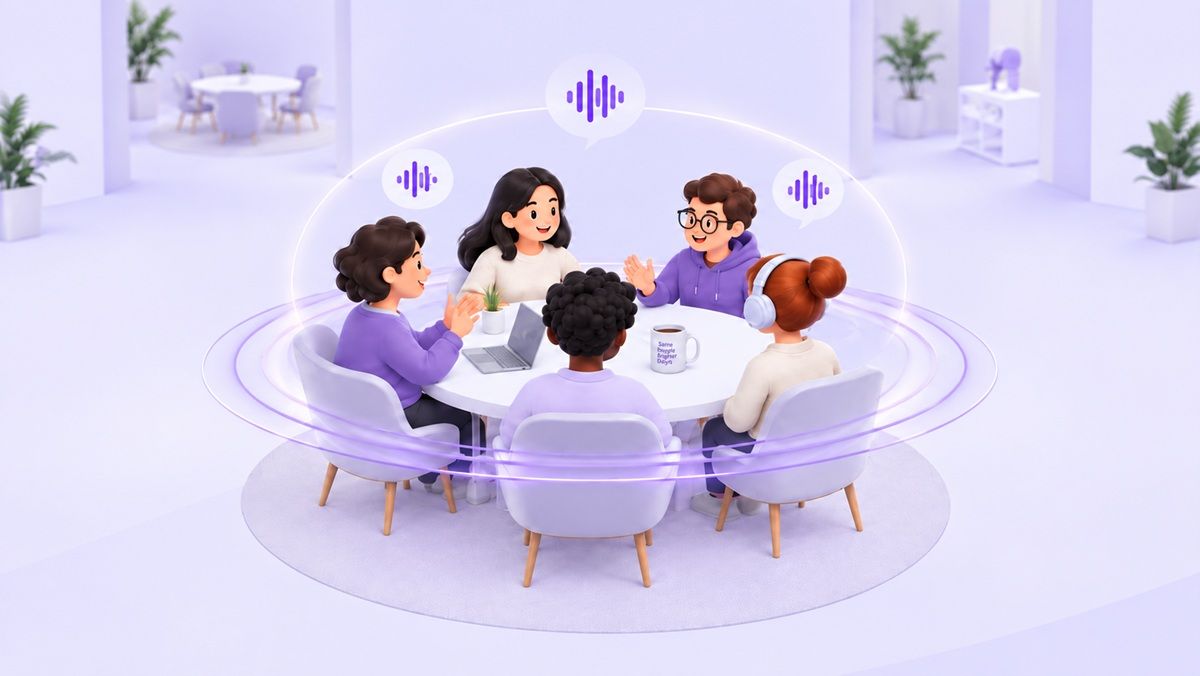
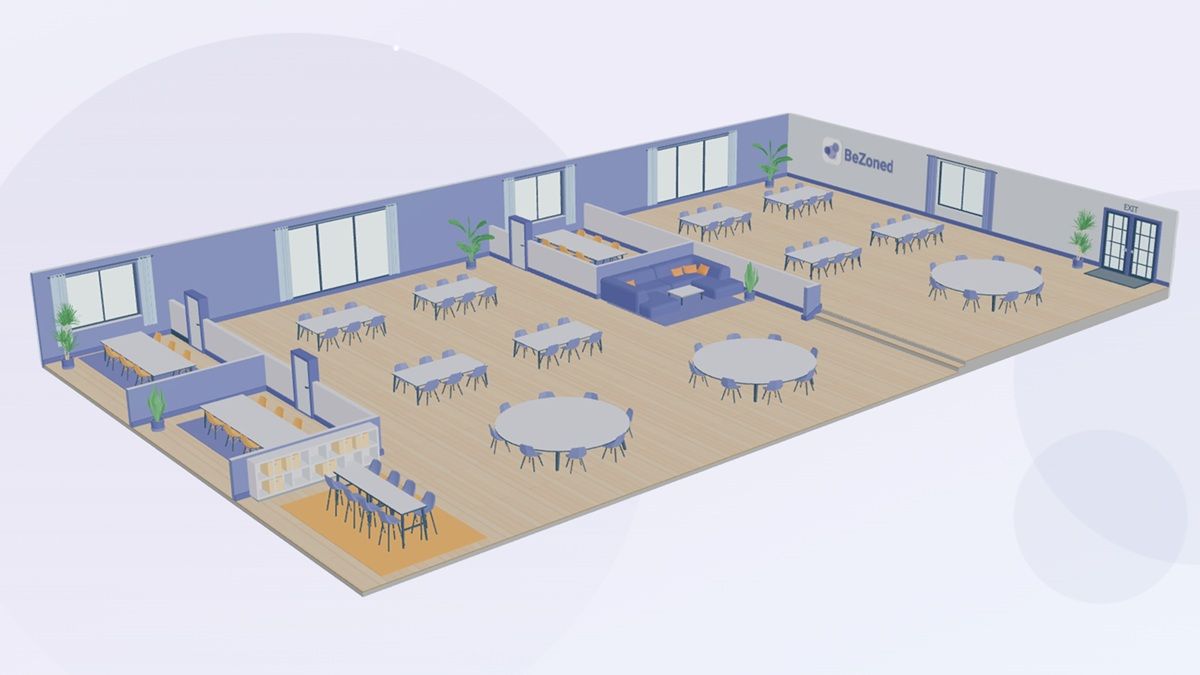
We’ve added a range of new office designs and sizes to give you more flexibility. These designs help teams collaborate more effectively while keeping the environment clean and organised. You can choose between the classic BeZoned look or a more neutral style.

Coming soon is a new office design inspired by industrial production halls, reflecting where many modern workplaces are located today.

Share Your Ideas

We’d love your input. If you have ideas for future office designs, let us know – we’re building this together with you. 😊

How to Use Office Designs

Create a New Office with a Design

  1. Go to Lobby settings

  2. Click Create office

  3. Choose your preferred office design during setup

Change the Design of an Existing Office

  1. Go to Lobby settings

  2. Open the Office settings for the office you want to update

  3. Select the Theme tab

  4. Choose your preferred office design from the dropdown menu


For more details on the office settings, click to see our guide

April 20th, 2026

New

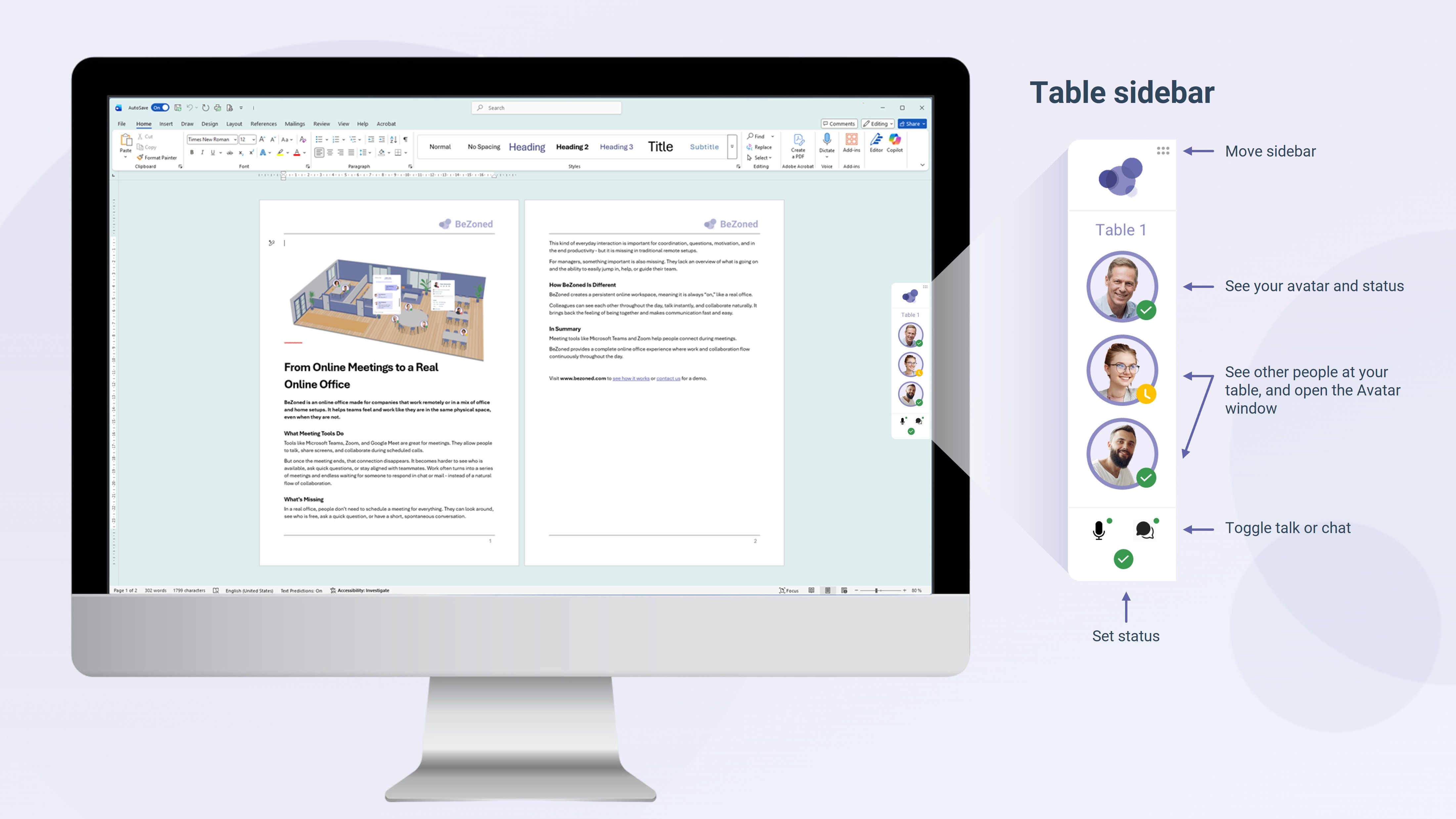
We’re excited to introduce a new quality-of-life update in BeZoned – the Sidebar.

It’s something we’ve been planning since the very beginning, and it solves a simple but important challenge. Now, you can stay connected with your team even when the BeZoned office is hidden behind other applications.

With the Sidebar, your team is always within view. You get that sense of sitting together without needing a large screen or keeping the full office open at all times.

How it works

Just like at a table, you can see who you’re sitting next to through their avatars. Clicking on an avatar gives you the same options as in the BeZoned office.

You can also set your status (Available, Away, Busy, or Do Not Disturb) and toggle your microphone and chat on or off directly from the Sidebar.

One of the most useful additions is Push-to-Talk, which now works across all applications on your computer. You don’t need to have the BeZoned office window active for it to work. You can easily change your Push-to-Talk key in user settings.

Setup

It takes less than a minute to get started. Click here and choose the installation that matches your setup and follow the instructions.

March 23rd, 2026

This release introduces more flexibility in how you organize your online office, improves awareness when colleagues join you, and brings product updates directly into BeZoned. Together, these updates help you stay organized, connected, and informed - without leaving your workspace.

Rename Tables to Match Your Workspace

You can now customize table names to better reflect how your team works. Use names to indicate team ownership, project focus, or purpose - such as quiet zones or away areas.

Rename a table

  1. Right-click on a table in your office

  2. Click Settings

  3. Enter the new table name

  4. Click Save

Note: You must be assigned as an Office Admin to rename tables.

Hear When Someone Joins Your Table

Stay aware of your team in real time with sound notifications when someone joins your table.

Manage table sound notifications

  1. Open the User menu

  2. Go to Settings

  3. Toggle Table sound notifications on or off

By default, this setting is turned on.

View Product News Inside BeZoned

You can now access the latest product updates and news directly within BeZoned, making it easier to stay informed without switching tools.

Open in-program news

  1. Click the arrow-down icon next to the Feedback button (top-right corner)

  2. Select Latest Update

Here, you can view recent updates and announcements.


What’s Coming Next

We’re actively working on two major improvements for the next release:

  • Flexible office designs: Choose different office sizes and layouts to better fit your team’s needs.

  • Table side-panel: A side panel showing who is at your table, making it easier to see and connect with colleagues.

Learn more about BeZoned and upcoming activities on our web site.

February 16th, 2026

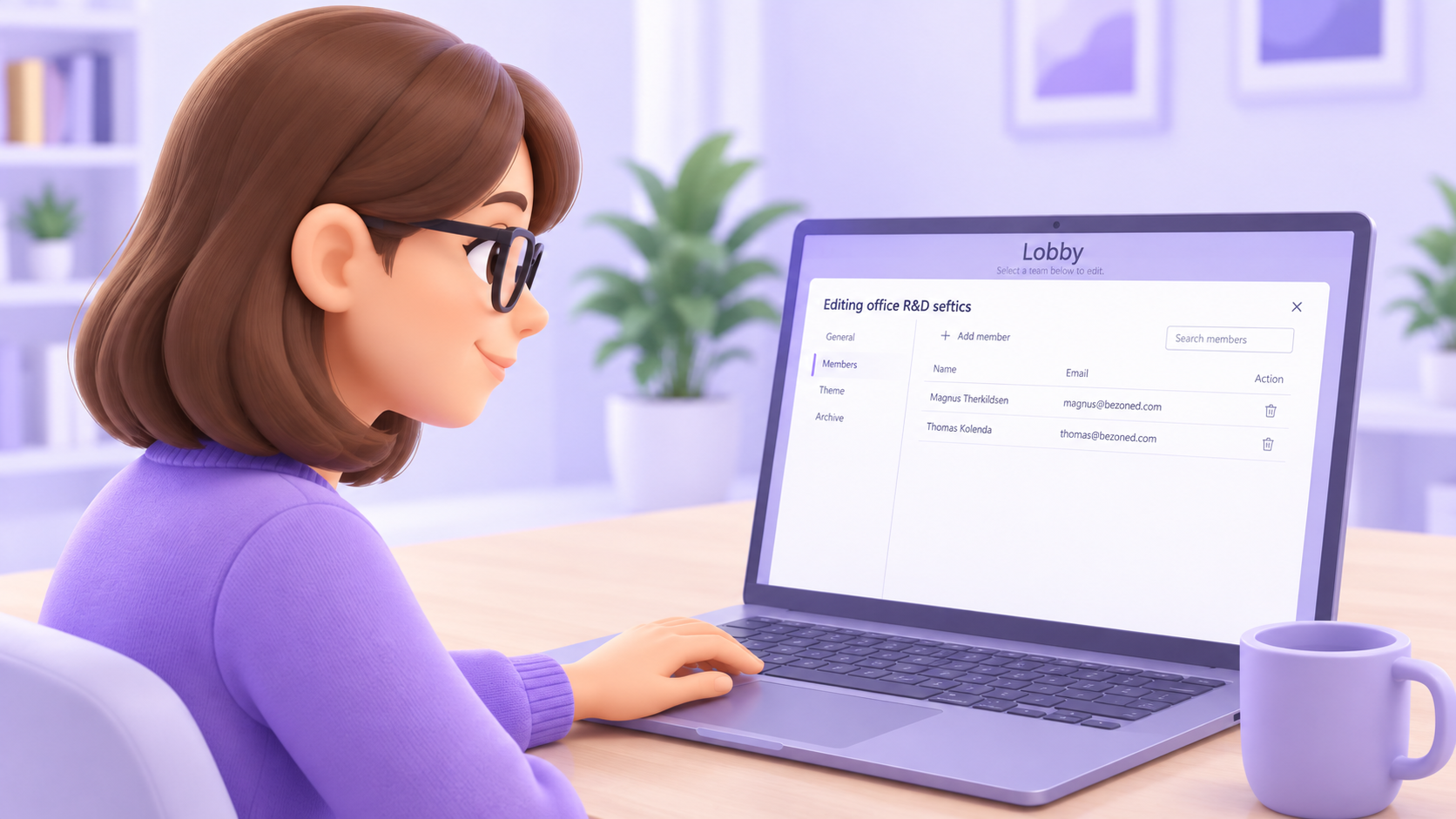
You can now configure and manage each office directly from the Lobby area - giving you options and flexibility in how your online office is setup.

Whether you need to update a name, adjust access, or align the space with your brand, everything is now easily accessible.

To access the Office Setting’s go to the Lobby area and click the menu icon in the top-right corner, and then select Edit.

Each listed office now includes a gear icon for quick access to its settings. If the gear icon is white, you can click it to open the Office Settings window. If it is grey, you will need to contact the office administrator for access.

Inside the Office Settings window, you will find several configuration options. Below are the most important:

  • Rename office
    Update the office name in the General pane. This also updates the name of the connected Microsoft Teams group. The name must be unique within your Microsoft Teams account.

  • Manage members
    Add or remove people who have access to the office from the Members pane. Click the plus button and search for people within your Microsoft Teams account.

  • Customize office logo
    Upload your company or team logo in the Theme pane. The logo will be displayed inside the office, replacing the default BeZoned logo.

  • Archive office
    Offices are not deleted but archived from the Archive pane and can be restored if needed. This action also archives the connected Microsoft Teams group.


Learn more about BeZoned and upcoming activities on our web site.

February 12th, 2026

You can now automatically update your Status when moving to a table or lounge in BeZoned.

This new feature helps you stay visible and aligned with your team - without needing to manually adjust your status every time you change location.

How it works

  • Right-click on a table.

  • Select Default status from the table menu.

  • Choose the status you want to apply automatically when someone moves to that table.

Once set, you can hover over the table to see whether a default status has been assigned.

You can still change your Status manually while sitting at a table, just as before. And your Status will also continue to sync automatically with Microsoft Teams and Outlook - for example, if you are in a calendar meeting or marked as away.

Learn more about BeZoned and upcoming activities on our web site.

November 5th, 2025

New

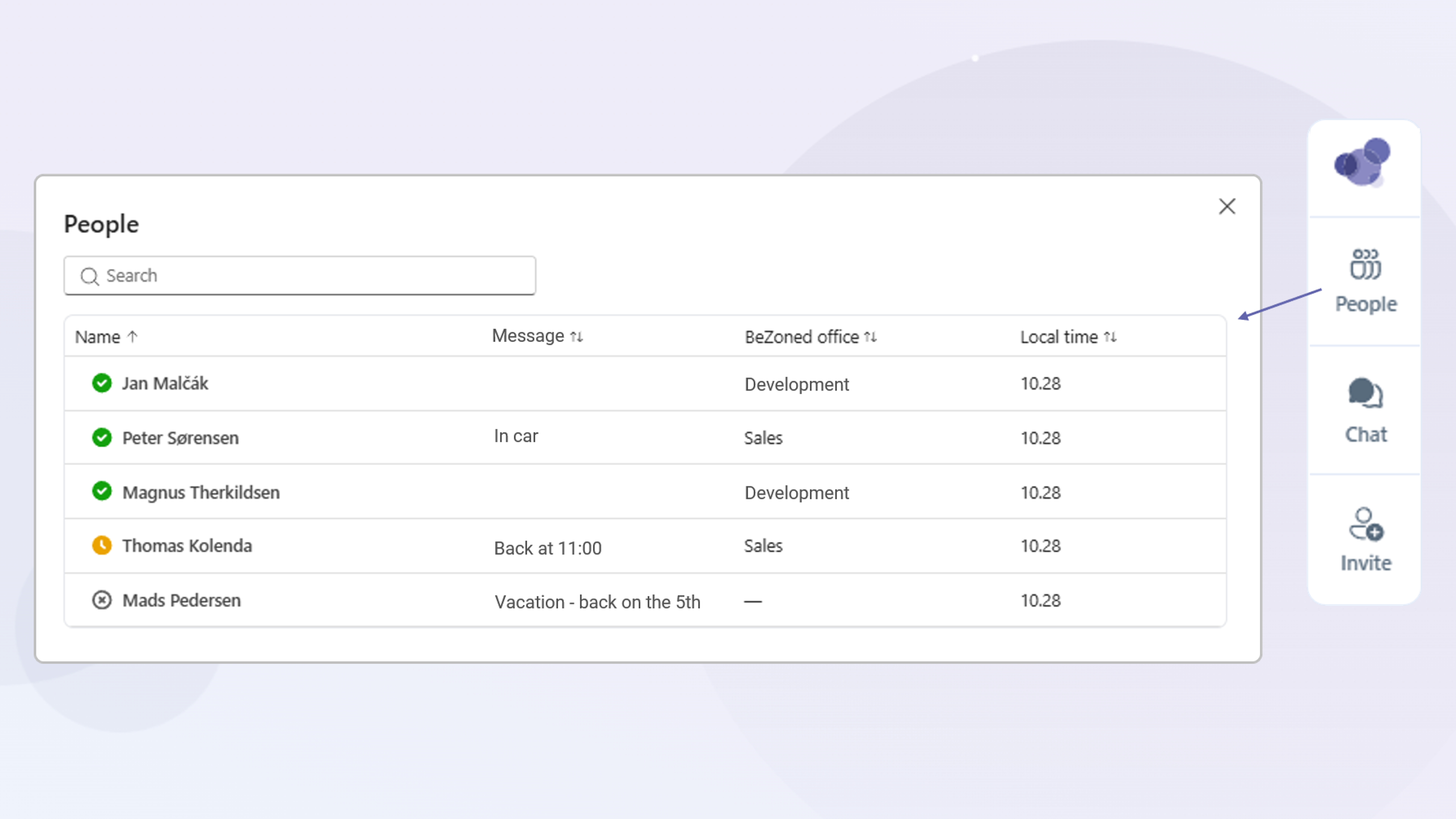
With the new Avatar Card in BeZoned, you can now easily be aware of your teammate’s schedule and location for the day with a single click on their avatar.

You’ll instantly see:

  • Their local time and time zone

  • Where they’re working from

  • Status messages (for example, if they’re away)

 And if you want to connect - just click Chat, Call, Email, or Phone – what makes most sense to you and the moment.

No more jumping between Teams or Outlook windows. Just one simple, seamless view.

Try it now!

To learn more about BeZoned and upcoming activities you can go to the BeZoned web site.

October 30th, 2025

We’re excited to share that BeZoned is now available for download on AppSource, Microsoft’s commercial marketplace – and it is free of charge for the rest of the year.

This marks an important step forward for our team and partners:

  • Globally available: You can now download BeZoned from anywhere in the World.

  • Microsoft approved: BeZoned has been rigorously tested by Microsoft, confirming it meets their high technical and usability standards and that it integrates perfectly with Microsoft Teams.

We’re incredibly proud of this achievement, and grateful to everyone who helped make this possible.

To learn more about BeZoned and upcoming activities you can go to the BeZoned web site.

October 8th, 2025

New

The BeZoned meeting panel is now available in regular Teams meetings - even if the meeting is not started through BeZoned (e.g., via a Room meeting).

This means that during a Microsoft Teams meeting, you can connect directly to any table or room in a BeZoned office that you normally only have access to through BeZoned.

Adding the BeZoned panel app is private and only applies to you and the specific meeting. Others cannot see it and do not have access to the content.


How to Add the BeZoned Panel

  1. In your Teams meeting, click the Add apps button in the top meeting panel.

  2. Search for BeZoned and select the BeZoned icon.

  3. A window will open, allowing you to choose the office and the specific table or room you want to connect to.

  1. Pick the office and table/room and click Save. Now you should now see the BeZoned panel to the right side.

If you would like to change the office and table/room, then click the […] button and settings in the BeZoned Pannel upper right-hand side.

To learn more about BeZoned and upcoming activities you can go to the BeZoned web site.